
How to Back Up Your Photos and Files Safely
Your photos, documents, and personal files can be difficult or impossible to replace if a device is lost, damaged, or accidentally erased. A reliable backup plan gives you extra copies in separate places, making it easier to recover your files when something goes wrong.
The good news is that backing up does not have to be complicated. With a few simple habits, you can protect your most important files and keep them organized.
Understand What a Backup Is
A backup is an extra copy of a file stored somewhere other than its original location. For example, if your photos are saved on your phone, copying them to a computer or cloud storage creates a backup.
A backup is different from simply moving a file. If you move a photo from your phone to a computer and delete the original, you may still lose the photo if the computer fails. A true backup keeps more than one copy.
A strong backup system usually includes:
– The original files on your main device
– A second copy on another device or storage drive
– An additional copy stored in a different location, such as cloud storage
This approach helps protect against common problems, including hardware failure, accidental deletion, theft, and damage caused by fire or water.
Choose the Files That Matter Most
Start by making a list of the files you would not want to lose. These may include:
– Family photos and videos
– Work or school documents
– Tax and household records
– Creative projects
– Important email files
– Scanned certificates and receipts
– Password recovery information
– Personal music or other media
You do not need to back up every temporary download or duplicate file. Focus first on files that are valuable, difficult to replace, or needed regularly.
After identifying these files, organize them into clear folders. For example, photo folders might be arranged by year and event:
– Photos
– 2024
– Family trip
– Birthday
– 2025
– Vacation
– Holidays
A simple structure makes backups easier and helps you find files when you need them.
Use an External Drive
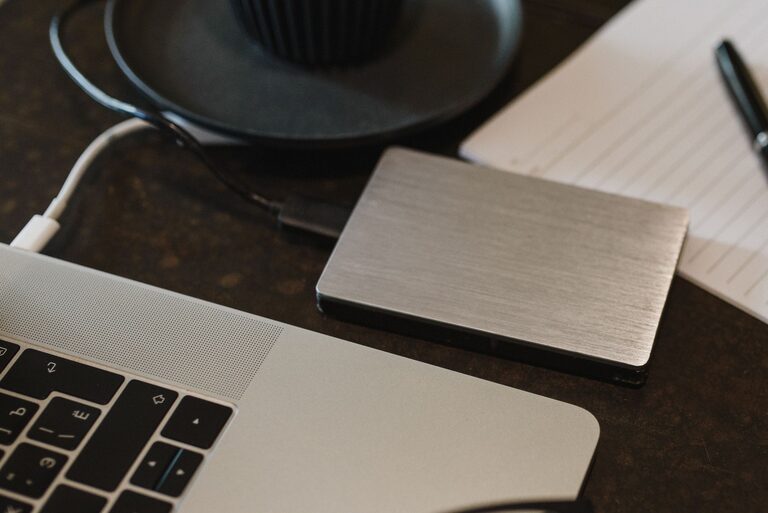
An external hard drive or solid-state drive is one of the simplest ways to create a local backup. These drives connect to a computer through a USB cable and are available in different storage sizes.
To back up your files:
- Connect the external drive to your computer.
- Open the folders containing your important files.
- Copy those folders to the external drive.
- Safely eject the drive when the transfer is complete.
- Store the drive in a safe, dry location.
For larger photo and video collections, choose a drive with enough space for your current files and future growth. It is also helpful to label the drive with its purpose and the date of the latest backup.
Do not leave your only backup drive connected all the time. If a problem affects your computer and connected devices, the backup could be affected too. Disconnecting the drive after each backup provides an extra layer of protection.
Consider Cloud Storage
Cloud storage keeps copies of your files on remote servers that you access through the internet. Many services can automatically back up photos from a phone or synchronize selected folders from a computer.
Cloud storage can be useful because:
– Files are available from multiple devices
– Backups can happen automatically
– Your files are stored away from your home
– You do not need to carry a physical drive
Before choosing a service, check its storage limits, supported devices, pricing, privacy settings, and file recovery options. Some services offer limited free space, while others charge a monthly or yearly fee for larger amounts.
Automatic photo backup is especially useful on smartphones. After enabling it, confirm that your photos are actually uploading. A backup app may pause when the battery is low, the connection is limited, or storage space is full.
Follow the Three Copy Rule
A practical backup strategy is often called the three-copy rule. Keep:
- Three copies of important files
- Two different types of storage
- One copy in a separate location
For example, you might keep the original photos on your computer, a second copy on an external drive, and a third copy in cloud storage.
This method reduces the chance that one event will remove every copy. You do not have to set up the entire system in one day. Start with the most important files, then add more over time.
Create a Regular Backup Schedule
A backup is most useful when it is current. Set a schedule that matches how often you create or change files.
You might use this routine:
– Daily: Allow your phone to back up new photos automatically
– Weekly: Back up recently changed computer files
– Monthly: Check that external and cloud backups are working
– Every few months: Review your storage space and remove unnecessary duplicates
If you frequently take photos or work on important documents, back up more often. Calendar reminders can help you remember manual backups.
Some computers and storage devices include automatic backup tools. These can save time by copying new and changed files without requiring you to do everything manually. Review the settings to confirm which folders are included.
Test Your Backups
A backup is not complete until you know it can be restored. Files may fail to copy correctly, become damaged, or be saved in an unexpected folder.
To test a backup:
- Choose a few photos and documents.
- Open them directly from the backup location.
- Check that the files are readable and complete.
- Try restoring a copy to another folder or device.
- Confirm that file names and folder organization are clear.
Perform this check every few months. Testing is particularly important before deleting files from an old device or replacing a computer.
Protect Your Accounts and Devices
Your backup accounts and storage devices should be protected just like your main computer or phone.
Use a strong, unique password for each storage account. Turn on two-step verification if the service offers it. Keep your computer, phone, backup apps, and operating system updated.
For physical drives, store them away from heat, moisture, and direct sunlight. Avoid dropping portable drives, and handle connection cables carefully. If a drive begins making unusual sounds, disconnect it and avoid using it until you have checked the condition of your files.
Be Careful When Deleting Files
Many cloud services synchronize changes across devices. This means that deleting a file in one location may also remove it from synchronized folders elsewhere.
Before deleting anything, check whether the service has a recycle bin, trash folder, or file recovery period. Keep older copies of important files when appropriate, especially documents that may need to be reviewed later.
It is also helpful to review duplicate photos and files regularly. Remove only the copies you no longer need, and make sure at least one good backup remains.
Build Your Backup Plan Today
The best backup plan is one you can maintain. Begin by backing up your most valuable photos and files to an external drive or trusted cloud service. Then add a second backup location and create a regular schedule.
Keep your folders organized, test your backups, and review your setup as your storage needs change. These small steps can save significant time and frustration if your phone, computer, or storage device ever fails.
